原文摘要
Qwen just released their sixth model(!) of this July called Qwen3-Coder-30B-A3B-Instruct - listed as Qwen3-Coder-Flash in their chat.qwen.ai interface.
It's 30.5B total parameters with 3.3B active at any one time. This means it will fit on a 64GB Mac - and even a 32GB Mac if you quantize it - and can run really fast thanks to that smaller set of active parameters.
It's a non-thinking model that is specially trained for coding tasks.
This is an exciting combination of properties: optimized for coding performance and speed and small enough to run on a mid-tier developer laptop.
Trying it out with LM Studio and Open WebUI
I like running models like this using Apple's MLX framework. I ran GLM-4.5 Air the other day using the mlx-lm Python library directly, but this time I decided to try out the combination of LM Studio and Open WebUI.
(LM Studio has a decent interface built in, but I like the Open WebUI one slightly more.)
I installed the model by clicking the "Use model in LM Studio" button on LM Studio's qwen/qwen3-coder-30b page. It gave me a bunch of options:
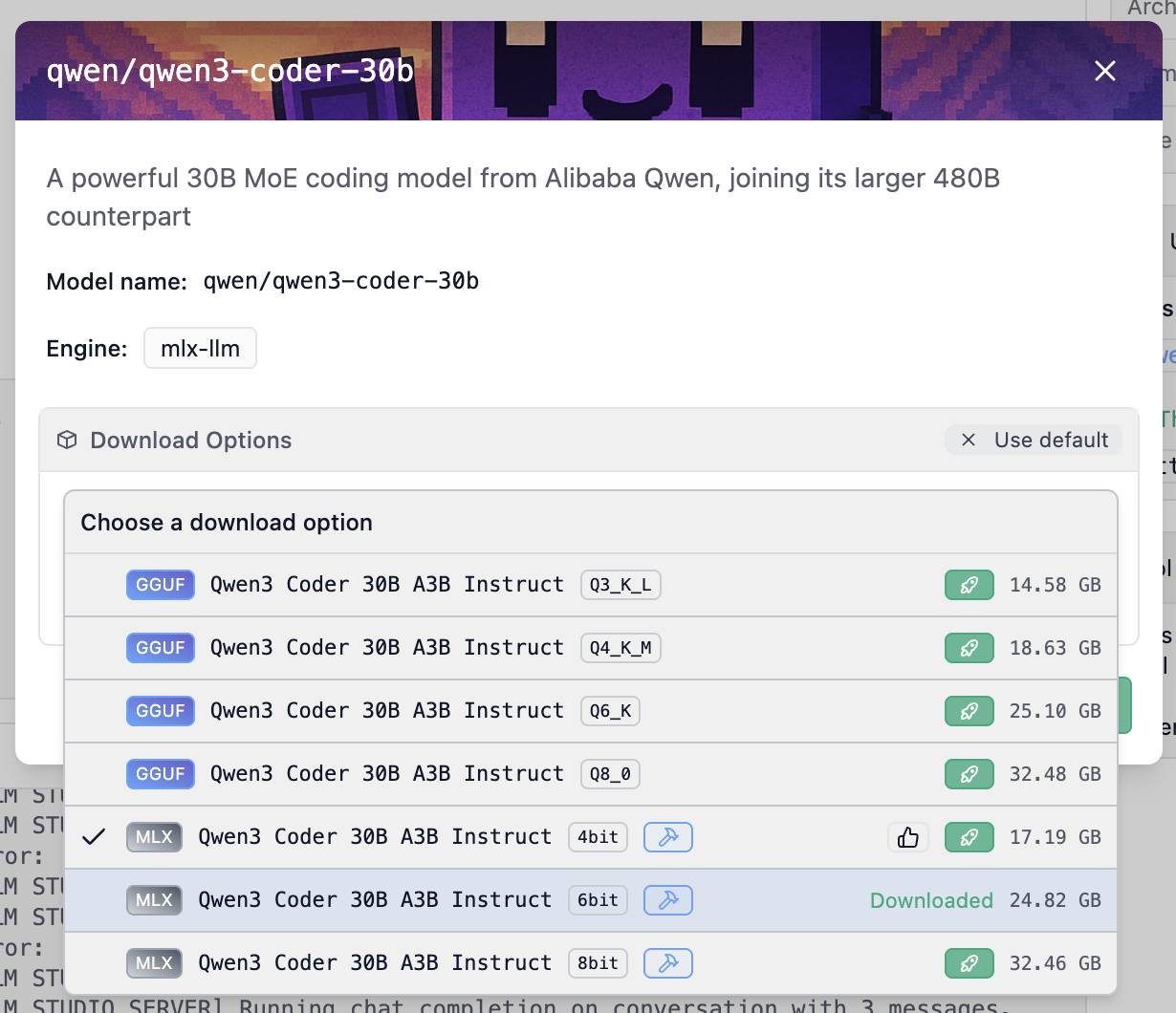
I chose the 6bit MLX model, which is a 24.82GB download. Other options include 4bit (17.19GB) and 8bit (32.46GB). The download sizes are roughly the same as the amount of RAM required to run the model - picking that 24GB one leaves 40GB free on my 64GB machine for other applications.
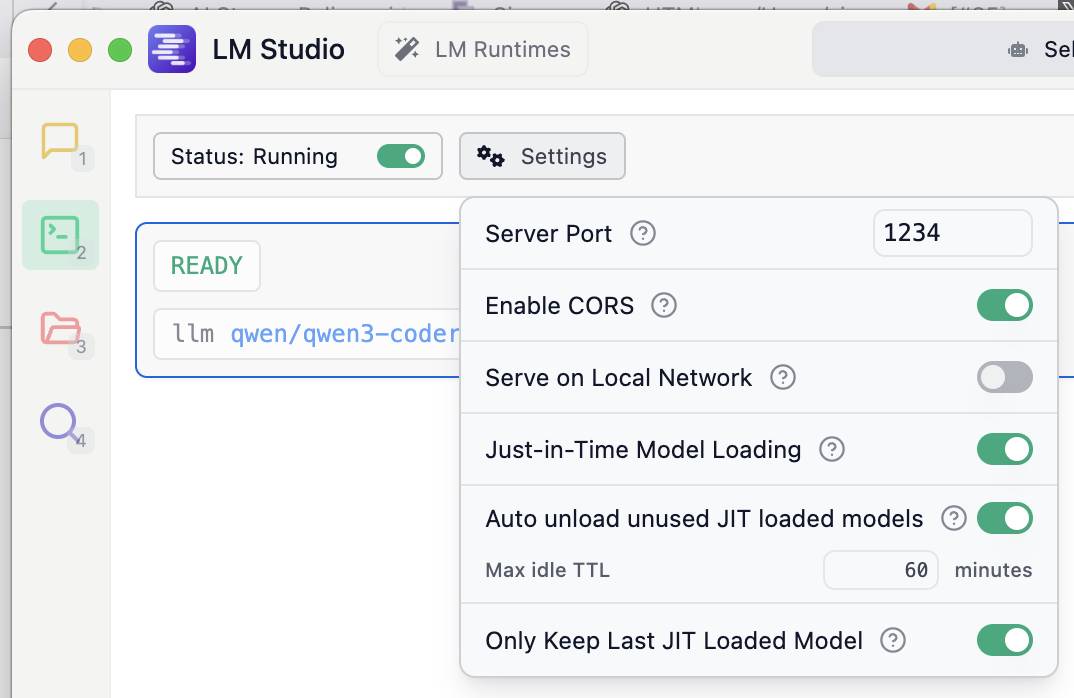
Then I opened the developer settings in LM Studio (the green folder icon) and turned on "Enable CORS" so I could access it from a separate Open WebUI instance.
Now I switched over to Open WebUI. I installed and ran it using uv like this:
uvx --python 3.11 open-webui serveThen navigated to http://localhost:8080/ to access the interface. I opened their settings and configured a new "Connection" to LM Studio:
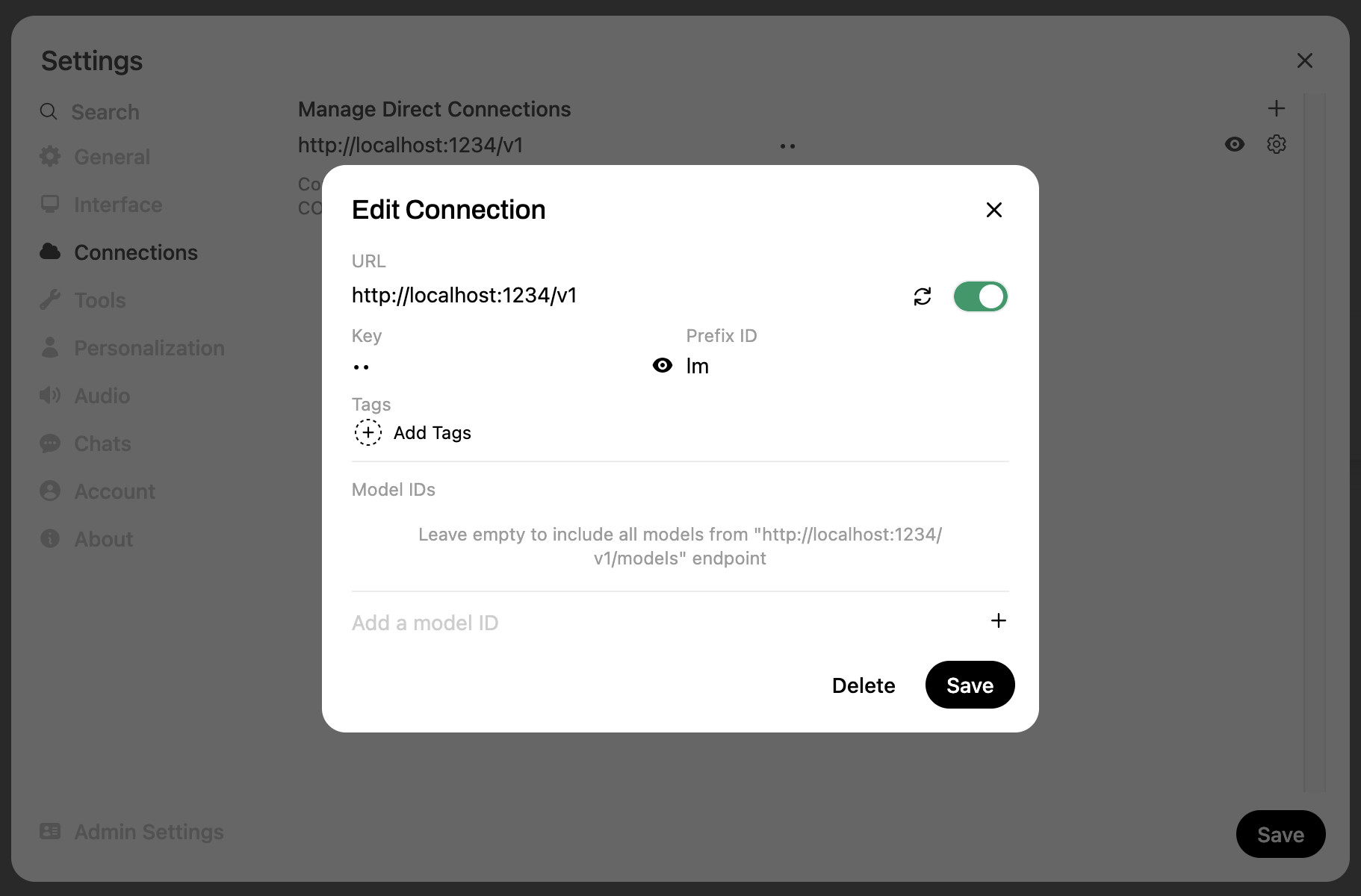
That needs a base URL of http://localhost:1234/v1 and a key of anything you like. I also set the optional prefix to lm just in case my Ollama installation - which Open WebUI detects automatically - ended up with any duplicate model names.
Having done all of that, I could select any of my LM Studio models in the Open WebUI interface and start running prompts.
A neat feature of Open WebUI is that it includes an automatic preview panel, which kicks in for fenced code blocks that include SVG or HTML:
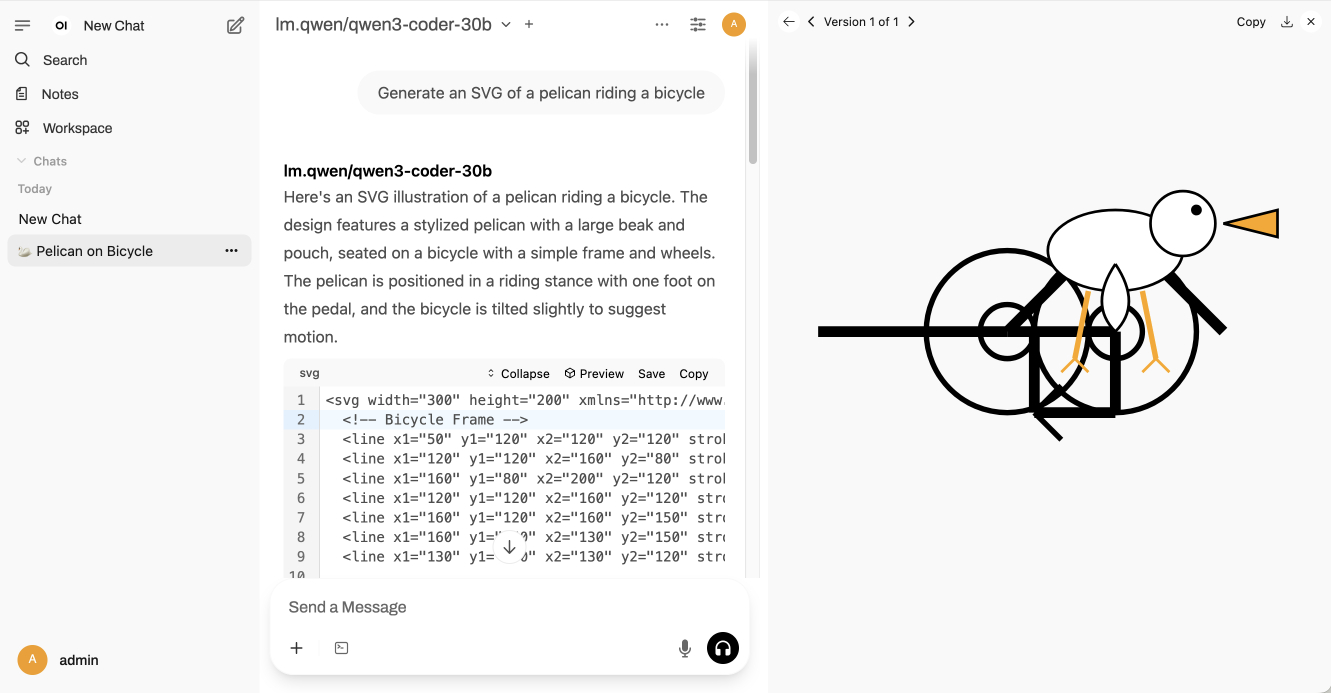
Here's the exported transcript for "Generate an SVG of a pelican riding a bicycle". It ran at almost 60 tokens a second!
Implementing Space Invaders
I tried my other recent simple benchmark prompt as well:
Write an HTML and JavaScript page implementing space invaders
I like this one because it's a very short prompt that acts as shorthand for quite a complex set of features. There's likely plenty of material in the training data to help the model achieve that goal but it's still interesting to see if they manage to spit out something that works first time.
The first version it gave me worked out of the box, but was a little too hard - the enemy bullets move so fast that it's almost impossible to avoid them:
You can try that out here.
I tried a follow-up prompt of "Make the enemy bullets a little slower". A system like Claude Artifacts or Claude Code implements tool calls for modifying files in place, but the Open WebUI system I was using didn't have a default equivalent which means the model had to output the full file a second time.
It did that, and slowed down the bullets, but it made a bunch of other changes as well, shown in this diff. I'm not too surprised by this - asking a 25GB local model to output a lengthy file with just a single change is quite a stretch.
Here's the exported transcript for those two prompts.
Running LM Studio models with mlx-lm
LM Studio stores its models in the ~/.cache/lm-studio/models directory. This means you can use the mlx-lm Python library to run prompts through the same model like this:
uv run --isolated --with mlx-lm mlx_lm.generate \
  --model ~/.cache/lm-studio/models/lmstudio-community/Qwen3-Coder-30B-A3B-Instruct-MLX-6bit \
  --prompt "Write an HTML and JavaScript page implementing space invaders" \
  -m 8192 --top-k 20 --top-p 0.8 --temp 0.7
Be aware that this will load a duplicate copy of the model into memory so you may want to quit LM Studio before running this command!
Accessing the model via my LLM tool
My LLM project provides a command-line tool and Python library for accessing large language models.
Since LM Studio offers an OpenAI-compatible API, you can configure LLM to access models through that API by creating or editing the ~/Library/Application\ Support/io.datasette.llm/extra-openai-models.yaml file:
zed ~/Library/Application\ Support/io.datasette.llm/extra-openai-models.yamlI added the following YAML configuration:
- model_id: qwen3-coder-30b
  model_name: qwen/qwen3-coder-30b
  api_base: http://localhost:1234/v1
  supports_tools: true
Provided LM Studio is running I can execute prompts from my terminal like this:
llm -m qwen3-coder-30b 'A joke about a pelican and a cheesecake'Why did the pelican refuse to eat the cheesecake?
Because it had a beak for dessert! 🥧🦜
(Or if you prefer: Because it was afraid of getting beak-sick from all that creamy goodness!)
(25GB clearly isn't enough space for a functional sense of humor.)
More interestingly though, we can start exercising the Qwen model's support for tool calling:
llm -m qwen3-coder-30b \
  -T llm_version -T llm_time --td \
  'tell the time then show the version'
Here we are enabling LLM's two default tools - one for telling the time and one for seeing the version of LLM that's currently installed. The --td flag stands for --tools-debug.
The output looks like this, debug output included:
Tool call: llm_time({})
  {
    "utc_time": "2025-07-31 19:20:29 UTC",
    "utc_time_iso": "2025-07-31T19:20:29.498635+00:00",
    "local_timezone": "PDT",
    "local_time": "2025-07-31 12:20:29",
    "timezone_offset": "UTC-7:00",
    "is_dst": true
  }

Tool call: llm_version({})
  0.26

The current time is:
- Local Time (PDT): 2025-07-31 12:20:29
- UTC Time: 2025-07-31 19:20:29

The installed version of the LLM is 0.26.
Pretty good! It managed two tool calls from a single prompt.
Sadly I couldn't get it to work with some of my more complex plugins such as llm-tools-sqlite. I'm trying to figure out if that's a bug in the model, the LM Studio layer or my own code for running tool prompts against OpenAI-compatible endpoints.
The month of Qwen
July has absolutely been the month of Qwen. The models they have released this month are outstanding, packing some extremely useful capabilities even into models I can run in 25GB of RAM or less on my own laptop.
If you're looking for a competent coding model you can run locally Qwen3-Coder-30B-A3B is a very solid choice.
<p>Tags: <a href="https://simonwillison.net/tags/ai">ai</a>, <a href="https://simonwillison.net/tags/generative-ai">generative-ai</a>, <a href="https://simonwillison.net/tags/llms">llms</a>, <a href="https://simonwillison.net/tags/ai-assisted-programming">ai-assisted-programming</a>, <a href="https://simonwillison.net/tags/llm">llm</a>, <a href="https://simonwillison.net/tags/uv">uv</a>, <a href="https://simonwillison.net/tags/qwen">qwen</a>, <a href="https://simonwillison.net/tags/pelican-riding-a-bicycle">pelican-riding-a-bicycle</a>, <a href="https://simonwillison.net/tags/llm-release">llm-release</a>, <a href="https://simonwillison.net/tags/lm-studio">lm-studio</a>, <a href="https://simonwillison.net/tags/ai-in-china">ai-in-china</a>, <a href="https://simonwillison.net/tags/space-invaders">space-invaders</a></p>
进一步信息揣测
- Qwen3-Coder-30B-A3B-Instruct的实际运行需求低于标称参数:虽然模型总参数为30.5B,但通过MoE(混合专家)架构仅激活3.3B参数,使得64GB Mac可流畅运行,甚至32GB设备量化后也能勉强支持,这比常规同规模模型更节省资源。
- 量化版本的隐性选择策略:作者选择6bit MLX版本(24.82GB)而非最高精度8bit,因6bit在性能与内存占用间达到最佳平衡(保留40GB空闲内存),暗示实际使用中更高量化级别(如4bit)可能牺牲过多质量,而8bit对普通开发任务性价比不高。
- LM Studio与Open WebUI的隐藏协作技巧:需手动开启LM Studio的CORS(跨域资源共享)并配置特定端口(1234),才能与Open WebUI联动,这一步骤未在官方文档显著标注,属于实践性经验。
- Open WebUI连接LM Studio的防冲突设计:通过添加前缀ID(如
lm)避免与Ollama模型名称冲突,反映多模型管理时的潜在问题,属于工具链整合的细节优化。 - MLX框架的未公开优势:作者提及MLX直接运行GLM-4.5 Air的经验,暗示MLX对苹果芯片的优化程度可能优于其他框架(如llama.cpp),尤其在内存管理和速度上,但需通过实践验证。
- 模型下载选项的隐含优先级:LM Studio界面默认展示GGUF和MLX格式,但MLX版本(专为苹果芯片优化)的实际性能可能优于通用GGUF,尤其对M系列Mac用户而言,属于平台特定优化内幕。
- 开发者工具的隐性依赖链:使用
uv(替代pip)安装Open WebUI可能因其速度更快或兼容性更好,反映小众工具链在专业圈子中的口碑传播,而非官方推荐路径。